Wedding Photo QR Code Ideas: Table Cards, Signs and Wording
A QR code lets your wedding guests upload photos straight from their phone. They point their camera at it, tap the link that appears and choose their photos. The code is the easy part. What really matters is what you write beside it, where you put it and whether it scans first time. Here are ideas for all three.
What to write on your wedding photo QR code
A QR code on its own looks like a pattern of squares, and some guests won't know what to do with it. A short line beside it does the work. Keep it to one sentence, and tell guests it's quick and needs no app.
Simple and clear
- "Scan to share your photos"
- "Scan to upload your photos and videos. No app needed."
- "Share your photos with Emma & James"
Warm and friendly
- "Help us see the day through your eyes. Scan to share."
- "Our photographer has the posed ones. You've got the rest. Scan to share them."
- "Take a photo, share a memory. Point your camera here."
A bit playful
- "Snap it, scan it, send it."
- "Caught the first dance? Scan and share it."
- "Your camera roll belongs in our album. Scan here."
Adding "Point your phone camera at the code" in small print helps older guests, who may not realise the normal camera app can read it.
Where to put your QR code
People scan when they have a moment and their phone is already out. Put the code where guests wait, sit or queue.
- Table cards. The best spot. Everyone sits down at some point, and the code is right in front of them. Use the same code on every table.
- Welcome sign. Guests see it as they arrive, which is a good time to mention it.
- Order of service or menus. A small code in the corner works well because guests are holding it anyway.
- The bar and the guest book. Queues are a natural moment to scan.
- Save the dates, invitations and your wedding website. Sending the link beforehand lets guests upload from the day itself and afterwards. The link and the QR code do exactly the same thing, so you can share either one.
- A screen. If you're showing a slideshow or welcome message, add the code to it.
It also helps if the MC, best man or a bridesmaid mentions it once. A single line of speech means nobody misses it.
Make sure it scans first time
A badly printed code is the most common reason guests give up. A few simple checks avoid that.
- Size. On table cards, keep the code at least 2.5cm (about an inch) square. A good rule of thumb is that a code can be scanned from roughly ten times its width, so a 10cm code on a sign works from about a metre away. Make signs bigger still.
- Contrast. Dark code on a light background is the most reliable. Avoid pale colours, and avoid light code on a dark background.
- Keep the white border. The empty margin around the code helps phones find it. Don't crop it or put text right up against the squares.
- Avoid shiny or patterned surfaces. Glossy paper and busy backgrounds cause glare and misreads.
- Test before you print. Scan a printed copy with an iPhone and an Android phone, in normal room light.
- Print a few spares. Cards get spilled on and signs get knocked over.
How to get your wedding photo QR code
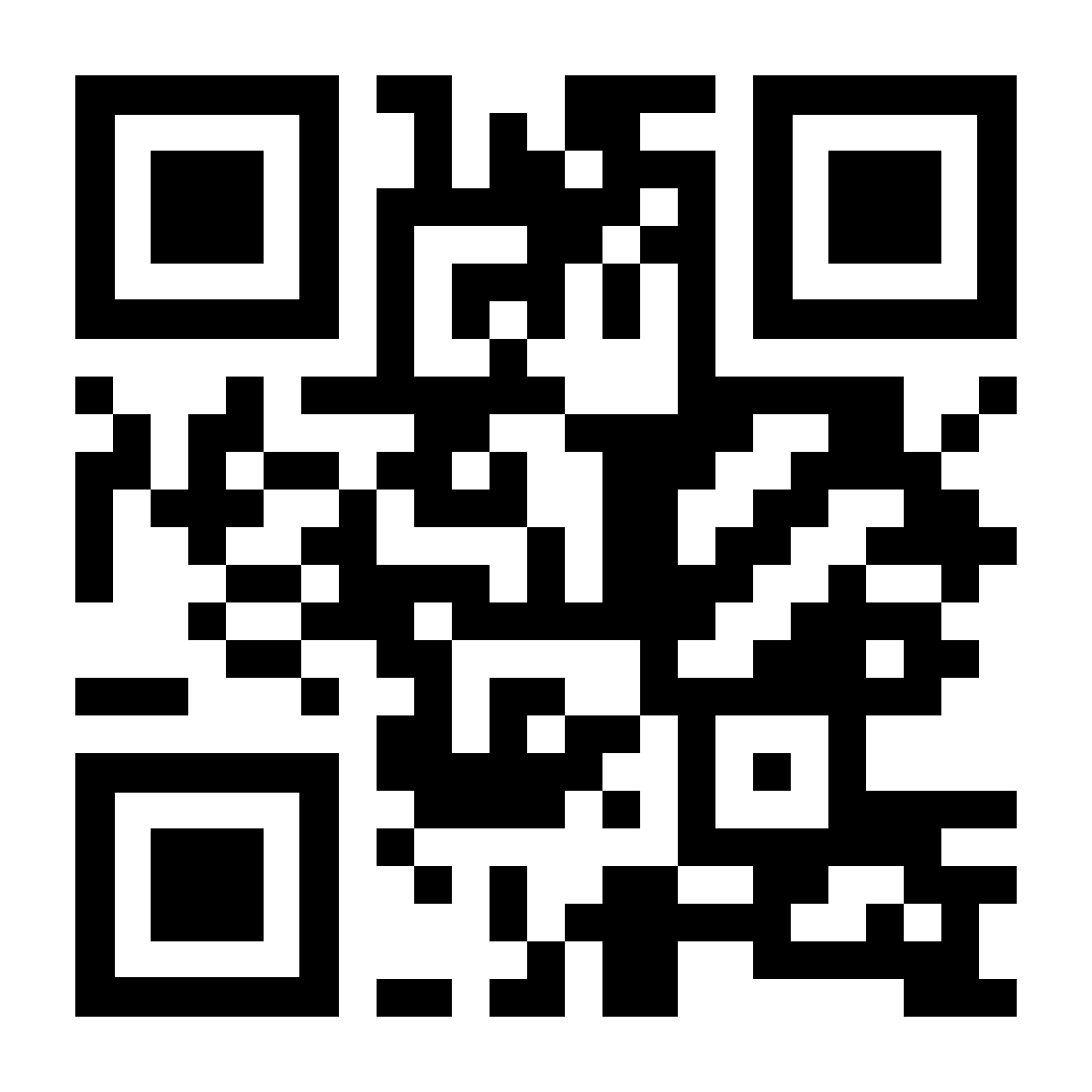
When you create an AllShare gallery, your upload link and QR code are made for you. You'll find them in your dashboard, where you can copy the QR code image or download it ready to print.
You can also download free printable table cards from your dashboard. Choose a design and your own QR code is placed on it for you. Download a tent card as a PDF, print it on A5 card and fold it along the middle so it stands up, with the QR code on both sides. Or download a single card as an image.
Want a matching code for something else, like your wedding website or invitations? Use our free QR code generator. You can choose the colours and size, then download it as a PNG, with no sign-up needed.
A quick checklist before you print
- Pick a short line of wording, and add "No app needed".
- Download a free table card from your dashboard, or download your QR code and place it on your own cards and signs.
- Check the size, the contrast and the white border.
- Scan a printed copy on two different phones.
- Print spares, and ask someone to mention it during the day.
For more on collecting photos from your guests, see our guide to free wedding photo sharing and the full wedding photo sharing page.
Frequently asked questions
How big should a wedding QR code be?
At least 2.5cm (an inch) square on a table card, and much larger on signs that guests read from a distance. If in doubt, go bigger and test it.
Should every table have the same QR code?
Yes. One QR code points to one gallery, so you can print the same code for every table, sign and menu. All the photos land in the same place.
Can I get ready-made wedding table cards?
Yes. Your dashboard has free printable table cards with your QR code already on them. Pick a design, download the tent card PDF and print it on A5 card.
Do guests need to download an app to scan it?
No. Most modern phones read QR codes with the normal camera app, and the upload page opens in the browser. Guests don't need an account either.
Will the QR code still work after the wedding?
It works for as long as your gallery is active, which depends on your plan. Guests can keep uploading until then, so it's worth sharing the link after the day too.
Ready to collect your wedding photos?
Create a free gallery in under a minute. Your QR code is waiting in your dashboard.
Create your free wedding galleryMore guides: AllShare blog